
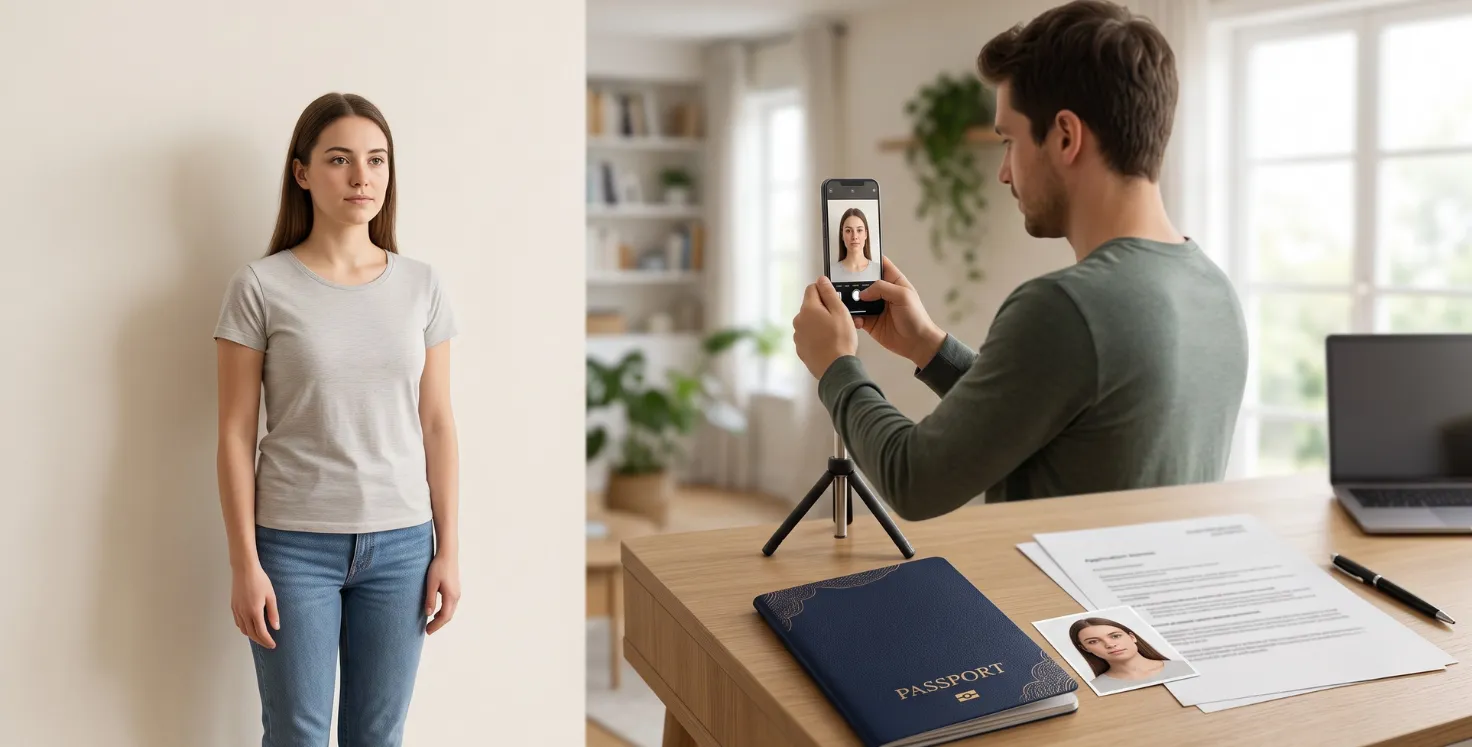
Understanding UK Passport Photo Requirements
Taking a valid UK passport photo with your phone is entirely possible — but the requirements are stricter than most people expect. Even a small deviation in framing, background, or expression can result in your application being rejected, causing delays and additional cost.
This guide walks you through everything you need to know: the official rules, how to get the best results from your phone, and the mistakes that most commonly trip people up. Following these steps carefully will give you the best chance of submitting a photo that meets the standards set by His Majesty's Passport Office (HMPO).
Please note that this website is not an official UK Government site. Always check the latest official guidance before applying.
Who Needs to Provide a Passport Photo?
Anyone applying for a UK passport — whether it is a first-time application, a renewal, or a replacement — must provide a photo that meets HMPO's published standards. The same requirements apply to adults and children, including babies and infants.
Photos taken on a smartphone are acceptable, provided they meet all the technical and visual specifications. You do not need to visit a professional photographer or a photo booth, but you do need to follow the rules precisely.
If your photo is rejected, HMPO will contact you to resubmit one. This can add significant time to your application, so it is worth getting it right first time.
How to Take a Valid UK Passport Photo with Your Phone: A Step-by-Step Guide
- Set up a plain white or cream background. Tape a sheet of white A3 paper to a wall if you do not have a suitable background. The background must be completely uniform — no patterns, textures, shadows, or objects visible.
- Position yourself away from the background. Stand or sit roughly one metre from the wall. This prevents your body casting a shadow onto the background, which is one of the most common reasons for rejection.
- Choose the right lighting. Sit facing a window on a cloudy day for soft, even, natural light. Turn off overhead lights and do not use your phone's flash, as both can create shadows or wash out your skin tone.
- Ask someone else to take the photo. Selfies often introduce distortion because the camera is too close to your face. Prop your phone on a stable surface, set the ten-second timer, and step back to the correct distance.
- Use the correct camera settings. Switch to standard photo mode — not portrait mode, which blurs the background artificially. Use the main lens at 1x zoom or slightly above. Avoid the wide-angle lens, as it can distort facial features.
- Frame the shot correctly. Your face should fill the frame from chin to crown. The finished photo must be 45mm tall and 35mm wide, with your head measuring between 29mm and 34mm in height within that space. Look straight at the camera with a neutral expression, mouth closed, and eyes open and clearly visible.
- Check the result before you submit. Review the photo carefully for shadows, head tilt, hair covering your face, and background issues. Use a passport photo app to check the crop and proportions before printing or uploading.
Common Pitfalls to Avoid When Taking Your Passport Photo
The same issues come up repeatedly in rejected passport photos. Being aware of them in advance can save you considerable time.
Glasses. Since 2018, HMPO has required that glasses not appear in passport photos, except in cases of medical necessity supported by a letter from a doctor. Many applicants are still unaware of this rule.
Shadows on the background. A shadow behind your head or to one side is a very common cause of rejection. Standing away from the background and using diffused natural light will eliminate this in most cases.
Portrait mode. This feature blurs the background, which will cause your photo to be rejected. Always use standard photo mode.
Selfies. Taking the photo yourself increases the risk of distortion and an incorrect angle. Use a timer and a stable surface instead.
Image compression. Sending your photo via WhatsApp or as an email attachment can compress the file and degrade the image quality significantly. Transfer the file using AirDrop, a USB cable, or a cloud service that preserves the original quality.
Editing and filters. Do not apply filters, skin smoothing, beauty adjustments, or any effect that changes how you look. Artificially replacing the background using an app is also not acceptable for UK passport photos.
Printing at the wrong size or resolution. If you are printing the photo yourself, you need a minimum resolution of 600 DPI at the final print size. Check your printer's specifications before printing.
Required Documents and Fees
For most passport applications, you will need to provide:
- A completed application form
- A valid passport photo that meets HMPO's requirements
- Your previous passport (for renewals)
- Supporting documents if applying for the first time or if your details have changed
- The applicable application fee
Fees and document requirements can change, so it is important to check the current guidance before you apply. You can find full details of what is needed — including the precise photo specifications — on the GOV.UK passport photo requirements page.
For adult passport renewals, visit the GOV.UK passport renewal page for the most up-to-date application guidance.
How Private Assistance Can Simplify Your Passport Photo and Application
Understanding the rules is one thing — applying them correctly to your own situation is another. Many applications are delayed not because the applicant was careless, but because the requirements are genuinely detailed and easy to misread.
A private passport assistance service can help you review your photo and application materials before you submit, identify potential issues in advance, and guide you through the process with confidence. This kind of support does not replace the official process or guarantee any particular outcome, but it can reduce the risk of avoidable errors that lead to delays.
If you would like help preparing your passport application — including guidance on your photo — visit UK Passport Assistance to find out how we can support you.
This website is not an official UK Government site. For the most up-to-date and official information, please visit the GOV.UK passport section.